

• IT Consulting

    Expert IT consulting with End-to-End IT Support & Monitoring to boost efficiency and security.

  • Web Development and Design

    Stunning, responsive websites that convert visitors into customers and drive growth.

  • Shopify Development

    High-performing, scalable Shopify solutions that empower your eCommerce business.

  • E-commerce

    Powerful, scalable e-commerce solutions that drive sales and enhance experiences.

  • IT Support Services

    Comprehensive IT support solutions to keep your business running smoothly.

  • Custom Software Development

    Tailored software solutions that streamline operations and drive business growth.

  • Mobile App Development

    Innovative, user-friendly mobile applications that deliver exceptional experiences.

  • SEO

    Boost website visibility and organic traffic with data-driven SEO solutions.

  • Marketing Automation

    Automate customer journeys, nurture leads, and boost conversions with smart marketing automation.

How to Create a Custom WordPress Theme

What Is a Custom WordPress Theme?

A custom WordPress theme is a unique design and functionality package built specifically for a website. Unlike pre-made themes, a custom theme is tailored to meet your exact requirements, providing full control over layout, styling, and features. Creating a custom theme allows you to optimize performance, ensure compatibility, and maintain brand consistency across your website.

Custom WordPress Theme

Why Custom WordPress Themes Matter

Full control: Customize layouts, functionality, and design without limitations.
Better performance: Avoid unnecessary code and plugins, resulting in faster load times.
Unique design: Stand out with a design tailored specifically to your brand.
SEO-friendly: Optimize HTML, CSS, and JS for search engines from the ground up.

Key Steps to Create a Custom Theme

Building a WordPress theme involves several essential steps. Here’s a structured approach to get started:
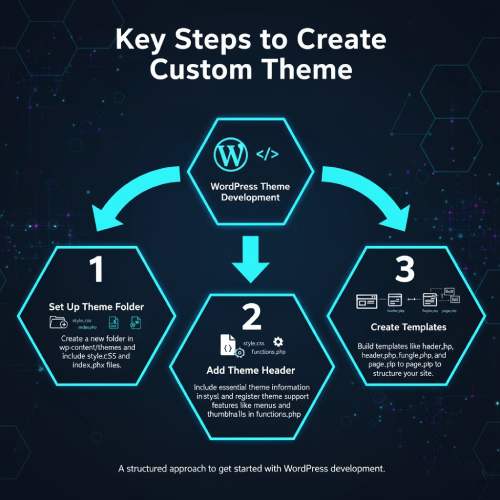
Custom WordPress Theme Steps
1
Set Up Theme Folder

Create a new folder in wp-content/themes and include style.css and index.php files.

2
Add Theme Header

Include essential theme information in style.css and register theme support features like menus and thumbnails in functions.php.

3
Create Templates

Build templates like header.php, footer.php, single.php, and page.php to structure your site.

Getting Started: Setup & Browser Support

Use local dev environment: Tools like XAMPP, WAMP, or Local by Flywheel help you develop safely.
Enable debugging: Turn on WP_DEBUG in wp-config.php to catch errors early.
Test across browsers: Chrome, Edge, Safari, and Firefox for full compatibility.

Advanced Features You Should Know

Custom Widgets: Add dynamic widgets to sidebars and footers.
Theme Customizer: Enable live preview options for colors, logos, and layouts.
Page Templates: Create custom templates for landing pages or special sections.
Custom Post Types: Extend WordPress functionality with portfolios, testimonials, or products.
Pro Tip: Use get_template_part() to reuse code snippets and keep templates clean.

Organizing Your Project

A clean theme structure ensures maintainability. Separate templates, assets, and functions for easier updates and debugging.

Organize CSS and JS in assets/ folder
Keep templates modular using template-parts/
Maintain functions in functions.php for reusable features

Performance & Best Practices

Minimize plugin use for speed
Use semantic HTML and proper headings
Keep theme lightweight and optimized
Test responsiveness and accessibility

Examples: Real-World Custom WordPress Themes

Underscores (_s) — Starter Theme

_s provides a minimal starter theme for building custom WordPress themes efficiently.

Visit Site
Sage — Advanced Theme

Sage is a modern WordPress starter theme with build tools and modular structure for professional projects.

Visit Site

Any Query? Feel Free to Contact Us

Contact Us